
Navigation: WP Admin > License Server > Support
The Support screen provides a built-in helpdesk for managing customer support tickets. Instead of relying on third-party tools, you can handle customer issues directly within your license server — with full context about each customer's licenses, subscriptions, and purchase history at your fingertips.
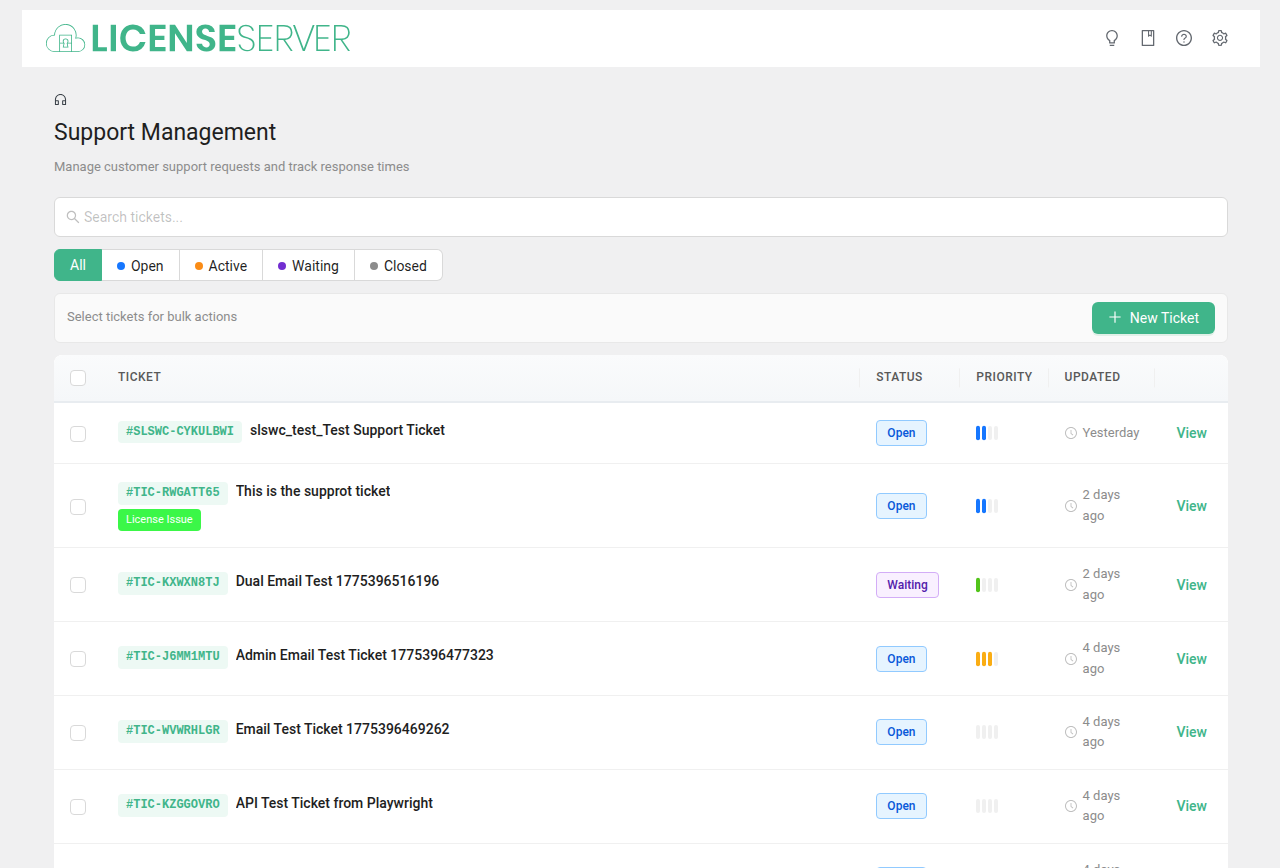
Tickets
The ticket list displays all support requests with:
- Ticket ID — Unique identifier.
- Subject — The ticket subject line.
- Customer — The customer who submitted the ticket.
- Status — Current ticket status (open, waiting on customer, waiting on agent, closed).
- Priority — Urgency level (low, normal, high, urgent).
- Category — The support category assigned to the ticket.
- Created — When the ticket was submitted.
Click a ticket to view the full conversation thread, change status, assign an agent, or reply.
Ticket Management Workflow
A typical support ticket follows this lifecycle:
1. Create
A customer submits a ticket from the frontend support form. If configured, they must provide a valid license key to create a ticket. The ticket appears in the list with status open.
2. Assign
An admin or lead agent assigns the ticket to an appropriate agent based on the category and the agent's expertise. The assigned agent receives an email notification.
Tip: Assign tickets promptly. Unassigned tickets can fall through the cracks. Consider establishing a rotation schedule among your agents.
3. Reply
The assigned agent reviews the ticket, investigates the issue (checking the customer's licenses, subscription status, and Logs for errors), and posts a reply. The customer receives an email notification with the response.
4. Wait for Customer
After replying, change the status to waiting on customer. This keeps your queue clean by separating tickets that need your action from those waiting on customer input.
5. Resolve and Close
Once the issue is resolved, change the status to closed. The customer receives a notification that their ticket has been closed.
Tip: Before closing a ticket, confirm with the customer that the issue is actually resolved. A quick "Does this resolve your issue?" message prevents re-opened tickets.
Agents
Support agents are WordPress users with permission to view and respond to tickets. When a ticket is assigned to an agent, they receive an email notification.
Setting Up Agents
- Navigate to
WP Admin > License Server > Settings > Support. - In the Support Agents section, add WordPress users who should have agent access.
- Agents can be any WordPress user role — the support system manages its own permissions separately.
Agent capabilities:
- View and respond to tickets assigned to them.
- Change ticket status and priority.
- Reassign tickets to other agents.
- View the customer's license and subscription information for context.
Tip: For small teams, all admins may serve as agents. For larger teams, create dedicated support agent accounts and establish clear ownership of ticket categories.
Categories
Support categories help organize tickets by topic, making it easier to route tickets to the right agent and track which areas generate the most support volume.
Managing Categories
- Navigate to
WP Admin > License Server > Settings > Support > Support Categories. - Add categories that reflect your common support topics (e.g., "Installation Help", "License Activation", "Billing", "Feature Request", "Bug Report").
- Categories appear in the ticket creation form so customers can classify their issue.
Best practices for categories:
- Keep the list short (5–8 categories). Too many options cause confusion.
- Use clear, customer-friendly language (e.g., "I can't activate my license" rather than "Activation Error").
- Review category distribution periodically. If one category dominates, consider improving documentation or the product to reduce that ticket type.
Email Notifications
The support system triggers email notifications at key points in the ticket lifecycle:
| Event | Recipient | Description |
|---|---|---|
| New ticket submitted | Admin / notification email | Alerts you that a new ticket needs attention. |
| Ticket assigned | Agent | Notifies the assigned agent that they have a new ticket. |
| Agent reply | Customer | Sends the agent's response to the customer. |
| Customer reply | Agent | Notifies the assigned agent that the customer has responded. |
| Ticket closed | Customer | Confirms the ticket has been closed. |
The notification email address is configured at WP Admin > License Server > Settings > Support. Customize the email templates at WP Admin > WooCommerce > Settings > Emails.
Configuration
All support system settings are managed at WP Admin > License Server > Settings > Support. Key options include:
- Enable or disable public (guest) ticket submission — Allow non-registered users to submit tickets.
- Require a license key to create a ticket — Ensures only paying customers can submit support requests. Reduces spam and low-quality tickets.
- Set rate limits for guest submissions and message frequency — Prevents abuse of the support form.
- Configure the notification email address — Where new ticket alerts are sent.
See Settings > Support for all fields.
Related Pages
- Settings > Support — Configure support system behavior
- Email Notifications — Customize support email templates
- Licenses — Check a customer's license status while resolving tickets
- Logs — Investigate errors reported by customers