
Navigation: WP Admin > License Server > Licenses
The Licenses screen lets you view, search, and manage all software licenses issued by your store. Licenses are the core of your software business — each one represents a customer's right to use your product on a specific number of domains.
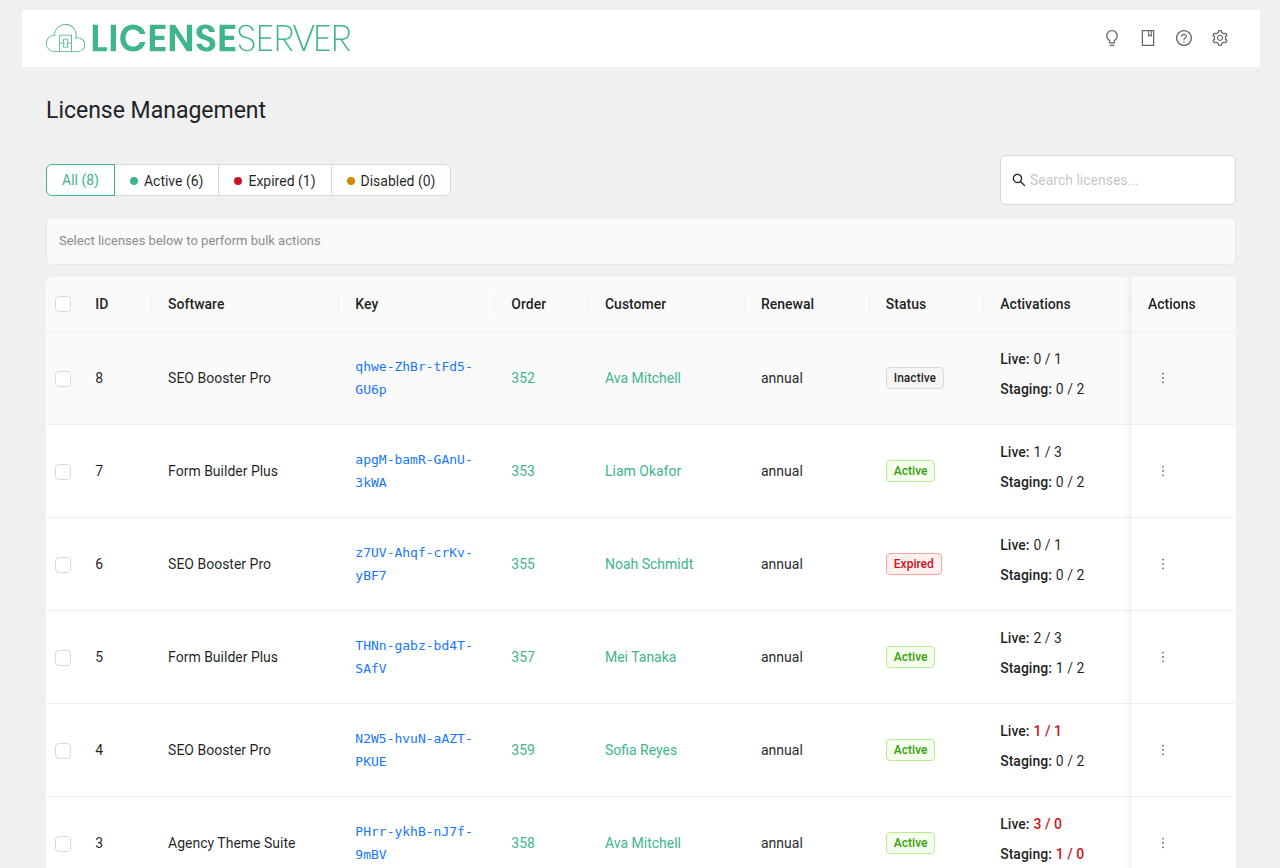
License List
The main table displays all licenses with the following columns:
- ID — The license ID.
- Software — The software product the license belongs to.
- Key — The unique key issued to the customer.
- Order — The WooCommerce order that created the license, linked to the order screen.
- Customer — The customer who owns the license.
- Renewal — The renewal period (for example, annual).
- Status — Current license status (see below).
- Activations — Live and staging activations against their limits, for example
Live: 1 / 3andStaging: 0 / 2. - Actions — A menu with the actions for that license.
Search and Filter
- Use the search box to find licenses by key, customer name, or email.
- Use the All, Active, Expired, and Disabled filters above the table to show only licenses in that status. Each shows a count.
- Pagination controls at the bottom let you navigate through large license lists.
License Detail
Click any license to view its full details:
| Field | Description |
|---|---|
| License Key | The generated license key string. |
| Product | The WooCommerce product this license is tied to. |
| Customer | The WordPress user / WooCommerce customer. |
| Order | The WooCommerce order that generated this license. |
| Status | Current status of the license. |
| Expiry Date | The date the license expires (or "Lifetime" for non-expiring licenses). |
| Activations | Number of domains currently activated. |
| Activation Limit | Maximum allowed domain activations. |
| Domains | List of domains where the license is currently activated. |
License Statuses
| Status | Meaning |
|---|---|
active | The license is valid and in use on at least one domain. |
inactive | The license has been issued but is not activated on any domain. |
expired | The license has passed its expiry date and can no longer be used. |
max_activations | The license has reached its maximum number of allowed domain activations. Only set when the slswc_save_max_activation_status filter returns true (off by default). New activations are blocked at the limit either way. |
Understanding Activation Limits
Each license has a maximum number of domains it can be activated on simultaneously. This limit is set per product (in the License tab of the product editor) and copied to the license when it is created.
- Single-site license (limit = 1): The customer can use the software on one domain at a time.
- Multi-site license (limit = 5, 10, etc.): The customer can activate on multiple domains simultaneously.
- Unlimited (limit = 0 or empty): No activation limit. The customer can activate on any number of domains. This applies to both the live and the staging activation limits.
When a license reaches its activation limit, new activations are refused. The license status stays as it is by default; it only changes to max_activations if the slswc_save_max_activation_status filter returns true (default false). The customer must deactivate an existing domain before they can activate on a new one. The customer can manage their activations from the My Account page, or you can deactivate domains manually from the license detail screen.
Tip: If customers frequently hit their activation limit, consider offering an upgrade path to a higher-tier plan with more slots. This is a natural upsell opportunity. Configure your tiers in Settings > Key Generator.
Licenses and Subscriptions
Licenses and subscriptions are tightly linked:
- When a customer purchases a subscription product, a license is created and linked to the subscription.
- When the subscription renews (payment succeeds), the license expiry date is automatically extended.
- When a subscription expires or is canceled, the linked license is also expired.
This means you rarely need to manage license expiry dates manually — the subscription lifecycle handles it. See Subscriptions for details on the subscription lifecycle.
What Happens When a License Expires
When a license passes its expiry date:
- The software stops receiving updates. Update check API calls return a "license expired" response, and the customer's WordPress dashboard will not show available updates for your product.
- Activations are preserved but frozen. Existing domain activations remain on record, but the customer cannot activate on new domains.
- The software continues to function. Expiration does not disable the software — the customer keeps using the last version they had. However, they will not receive security patches or new features.
Admin options for expired licenses:
- Renew manually: Edit the license and set a new expiry date. This is useful for granting extensions to loyal customers or resolving billing disputes.
- Reactivate the subscription: If the linked subscription is expired or on-hold, renewing it will automatically extend the license.
- Leave it expired: If the customer does not renew, the license remains expired but the software continues working at its current version.
Common Tasks
Manually Extending a License
- Navigate to the license detail page by clicking the license key in the list.
- Edit the Expiry Date field and set a new future date.
- Update the Status to
activeif it was expired. - Save the license.
Warning: Manually extending a license does not affect the linked subscription. If the customer has an active subscription, the next renewal will overwrite your manual date. For subscription-linked licenses, manage the expiry through the subscription instead.
Revoking a Domain Activation
- Open the license detail page.
- In the Domains section, find the domain you want to deactivate.
- Click the remove/deactivate button next to the domain.
- The activation count decreases and the domain is removed. If the license was at
max_activations, its status reverts toactive.
Finding All Licenses for a Customer
- Use the search box on the Licenses list page.
- Enter the customer's name or email address.
- All licenses belonging to that customer are displayed, regardless of status.
Related Pages
- Subscriptions — Manage recurring billing that drives license renewals
- Settings > Key Generator — Configure license key format and defaults
- Reports — View activation rate and customer metrics
- Logs — Audit trail of license activations and deactivations