
Navigation: WP Admin > License Server > Subscriptions
The Subscriptions screen manages recurring billing for software products. Subscriptions are the engine behind your recurring revenue — they automatically collect payments, renew licenses, and handle failed payments with configurable retry logic and grace periods.
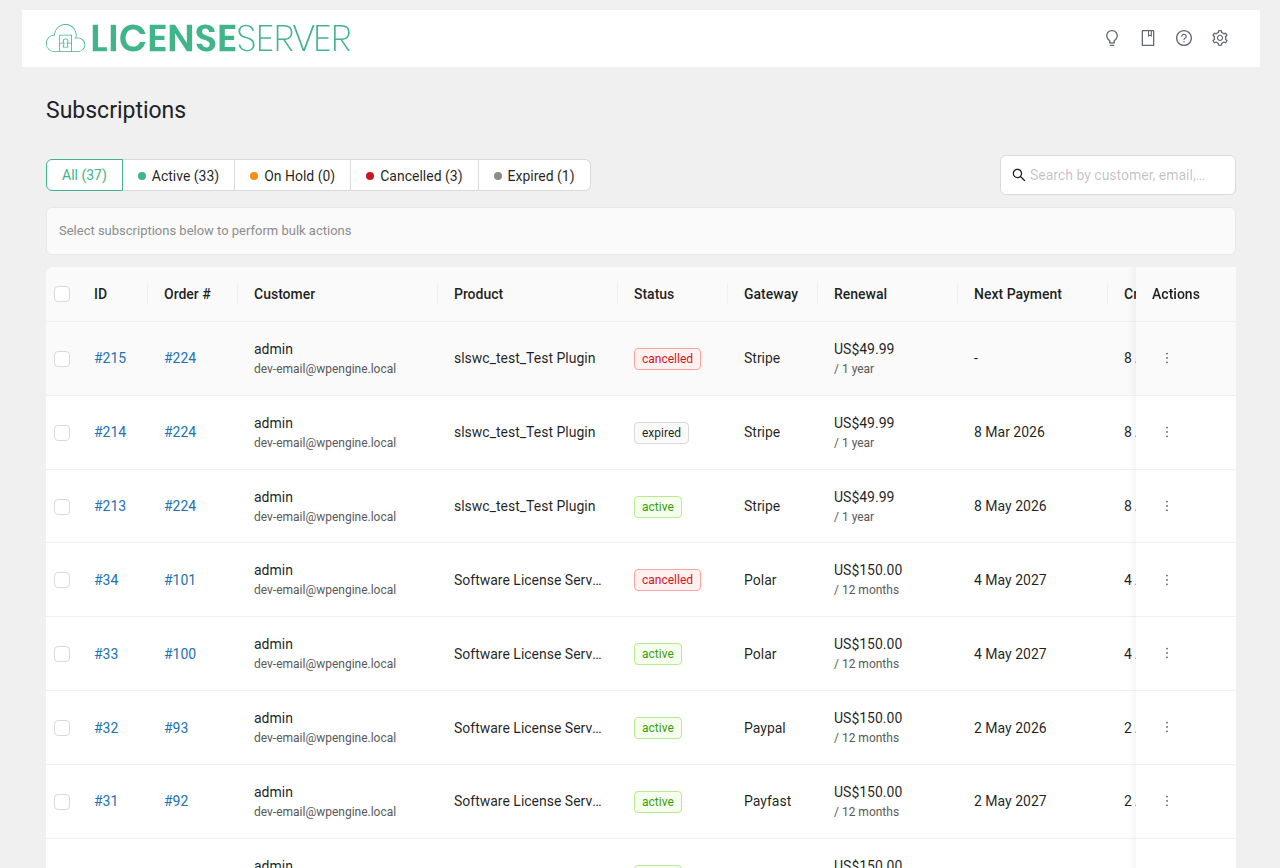
Subscription List
The table displays all subscriptions with:
- ID — Unique subscription identifier.
- Customer — The subscriber.
- Product — The software product.
- Status — Current subscription status.
- Billing Period — The recurring interval (e.g., monthly, yearly).
- Next Payment — Date of the next scheduled payment.
- License — The linked license key.
Use the search box and status filter to narrow the list.
Subscription Detail
Click a subscription to view full details including:
- Linked license and order information.
- Payment history and next payment date.
- Gateway subscription ID (Stripe, PayPal, etc.).
- Trial period details (if applicable).
- Retry count for failed payments.
How Subscriptions and Licenses Work Together
Subscriptions create and manage licenses automatically:
- Purchase: When a customer buys a subscription product, a license key is generated and linked to the new subscription.
- Renewal: When a subscription payment succeeds, the linked license's expiry date is extended by the billing period (e.g., +1 year for annual subscriptions). Both the subscription and license remain active.
- Failure: When a payment fails, the subscription moves to on-hold. The license remains active during the retry period and grace period, giving the customer time to update their payment method.
- Expiry: When a subscription expires (retries exhausted, grace period ended), the linked license is also expired. The customer loses access to updates.
- Cancellation: When a subscription is canceled, the linked license typically remains active until its current expiry date, then expires without renewal.
Tip: You rarely need to manage license expiry dates manually. The subscription lifecycle handles renewals and expirations automatically. See Licenses for more on the license side.
Subscription Lifecycle
A subscription moves through these states:
| Status | Description |
|---|---|
active | Payments are current. The linked license is active. |
on-hold | A payment has failed. The system will retry based on your retry settings. |
expired | The subscription has ended (missed payment, grace period elapsed, or non-renewal). |
canceled | The customer or admin has canceled the subscription. |
suspended | The customer has temporarily paused the subscription (if allowed in settings). |
Lifecycle Flow
- Active — Customer purchases a subscription product. Payment succeeds.
- On-hold — A renewal payment fails. A scheduled action retries the payment based on the configured max retry attempts.
- Expired — If retries are exhausted and the grace period (if configured) ends, the subscription expires. The linked license is also expired.
- Canceled — The customer cancels from their account, or an admin cancels manually.
Payment Retry Logic
When a subscription renewal payment fails, SLSWC does not give up immediately. Instead, it follows a configurable retry process:
- The subscription status changes to
on-hold. - The
slswc_retry_failed_paymentsscheduled action runs every 12 hours and processes on-hold subscriptions in batches of 50. - Each retry attempt increments the subscription's retry counter. The gateway handles the actual payment collection:
- Stripe: Calls
Invoice::pay()on the failed invoice. - PayPal, Payfast, Polar: Checks the remote subscription status (these gateways handle retries on their side).
- Stripe: Calls
- If the payment succeeds, the subscription returns to
activeand the license is renewed. - If the maximum retry count is reached (default: 3, configurable at Settings > Subscriptions), the subscription either enters the grace period or expires immediately.
Tip: Configure your retry and grace period settings at
WP Admin > License Server > Settings > Subscriptions. A combination of 3 retries over 6 days plus a 7-day grace period gives customers nearly two weeks to fix payment issues before losing access.
Grace Periods Explained
A grace period gives customers extra time after all payment retries have been exhausted. During the grace period, the subscription remains on-hold and the linked license stays active — the customer can still use your software and receive updates.
How it works:
- Payment fails and retries begin (twice daily).
- After the maximum retries (default: 3) are exhausted, if a grace period is configured, the system sets a
grace_period_enddate on the subscription (current date + grace period days). - The daily
slswc_expire_subscriptionsscheduled action checks for on-hold subscriptions whose grace period has ended. - Once the grace period expires, the subscription and its linked license are both set to
expired.
Example with 3 retries and a 7-day grace period:
| Day | Event |
|---|---|
| Day 0 | Renewal payment fails. Subscription goes to on-hold. |
| Day 0.5 | First retry attempt (12-hourly scheduled action). |
| Day 1 | Second retry attempt. |
| Day 1.5 | Third retry attempt. Max retries exhausted. Grace period starts. |
| Day 1.5 — 8.5 | Grace period. Customer's license still works. Expiring emails are sent. |
| Day 8.5 | Grace period ends. Subscription and license expire. |
If the grace period is set to 0 days: Subscriptions expire immediately when retries are exhausted. No buffer is provided.
Warning: Setting the grace period too long may result in customers using your software for extended periods without paying. A 7–14 day grace period is a reasonable balance between customer goodwill and revenue protection.
What to Do When a Subscription Payment Fails
- Check the subscription detail page to see the retry count and next payment date.
- Review Logs for the specific payment error (card declined, expired card, insufficient funds, etc.).
- Contact the customer if the error suggests they need to update their payment method. An email notification is automatically sent on payment failure.
- Wait for retries — the system will automatically retry based on your settings.
- If retries are exhausted and the customer has contacted you, you can manually retry from the gateway's dashboard (e.g., Stripe Dashboard) or ask the customer to make a manual payment.
- As a last resort, you can cancel the subscription and have the customer re-purchase, or manually extend the license from the Licenses page.
Related Pages
- Licenses — Manage the licenses linked to subscriptions
- Settings > Subscriptions — Configure grace periods, retry limits, and billing behavior
- Payment Gateways — Gateway-specific configuration
- Scheduled Actions — Background tasks that process retries and expirations