
Navigation: WP Admin > License Server > Settings > Tools
The Tools tab provides maintenance actions you can run manually. These are one-click operations for data fixes that sometimes need to be triggered on demand — after a data import, when troubleshooting, or when scheduled actions are not running reliably.
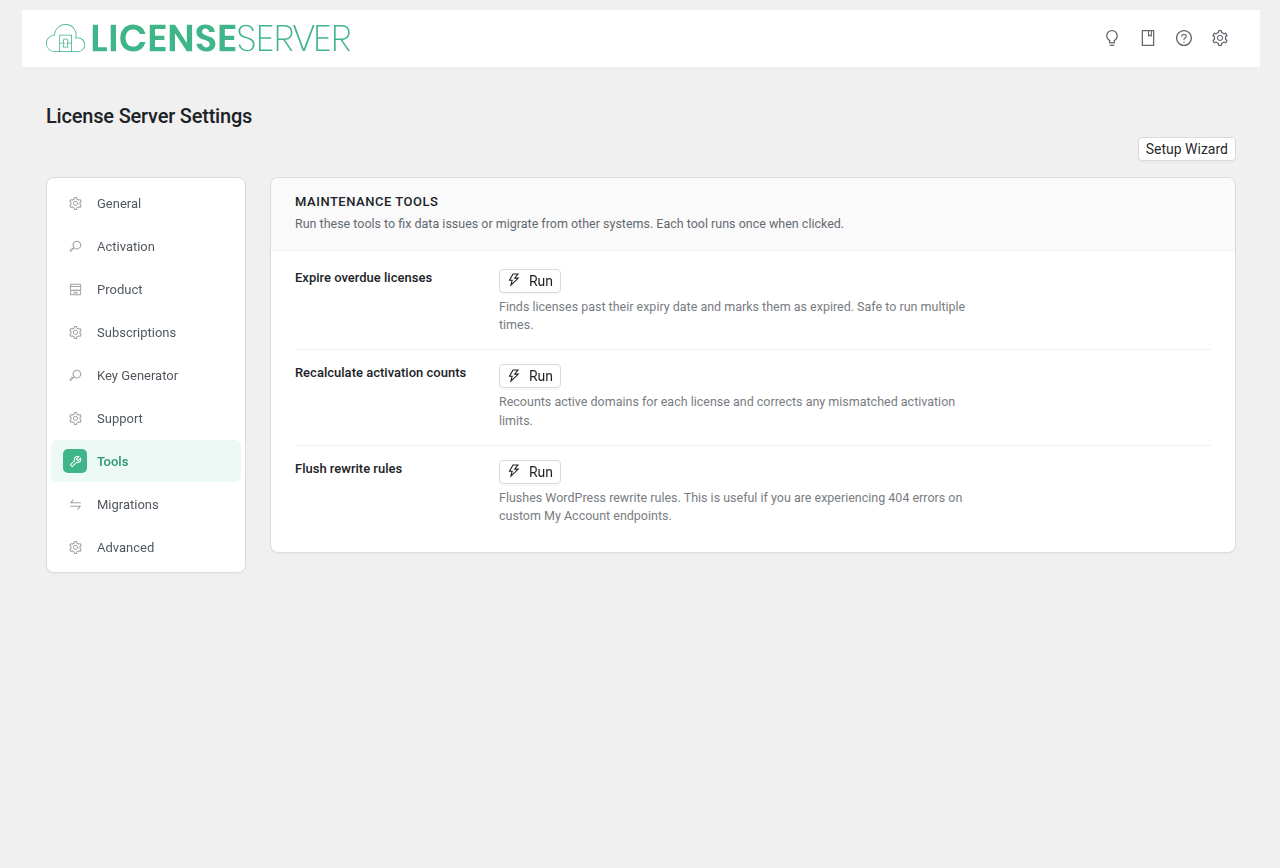
Maintenance Tools
Expire Overdue Licenses
Finds licenses past their expiry date and marks them as expired.
When to use:
- After importing license data from another system where expiry dates may already be in the past.
- If scheduled actions have been unreliable and you suspect expired licenses have not been processed.
- After manually adjusting expiry dates in the database.
What it does: Finds all non-expired licenses whose expiry date is on or before the current date, sets them to expired status, and resets their expiry date to yesterday. It does not deactivate the license's domains.
Note: This is not the same as the daily
slswc_expire_licensesscheduled action, which expires licenses by deactivating them. To run that exact job on demand, run it fromWP Admin > WooCommerce > Status > Scheduled Actions.
Tip: Safe to run multiple times. Running this tool on licenses that are already correctly expired has no effect.
Recalculate Activation Counts
Recounts active domains for each license and corrects any mismatched activation counts.
When to use:
- After direct database changes or imports that may have left activation counts out of sync.
- If a customer reports that their license shows incorrect activation counts (e.g., "3 of 5 used" when they only have 2 domains activated).
- After restoring a database backup where the activation counts may not match the actual domain records.
What it does: For each license, counts the actual number of active domain activation records and updates the stored activation count to match. If a license was incorrectly marked as max_activations but actually has available slots, its status is corrected.
Warning: This tool reads all license records. On stores with thousands of licenses, it may take a few seconds to complete. It does not affect customer-facing functionality during execution.
Flush Rewrite Rules
Flushes WordPress rewrite rules and re-registers SLSWC's custom endpoints.
When to use:
- If you are experiencing 404 errors on custom My Account endpoints (e.g., the Licenses or Subscriptions tabs in the customer's account).
- If REST API routes return 404 errors.
- After changing your WordPress permalink structure.
- After initial plugin installation (this is part of the Getting Started checklist).
What it does: Equivalent to visiting WP Admin > Settings > Permalinks and clicking Save Changes. It re-registers all custom URL rules so WordPress can route requests to the correct endpoints.
Tip: This is the first thing to try when encountering 404 errors on any SLSWC page or API route. It resolves the majority of routing issues.
Extensibility
Developers can register custom tools with two filters:
slswc_server_toolsmaps each tool ID to the callable that runs it.slswc_tools_settingsadds the button to the Tools tab. Each button is a settings field with'type' => 'tool-button'and anidthat matches the tool ID.
// Register the callable that runs the tool.
add_filter( 'slswc_server_tools', function ( $tools ) {
    $tools['my_custom_tool'] = 'my_tool_callback';
    return $tools;
} );

// Add a button for the tool to the Tools tab, before the closing sectionend.
add_filter( 'slswc_tools_settings', function ( $settings ) {
    $button = array(
        'title' => __( 'My Custom Tool', 'my-extension' ),
        'desc'  => __( 'Does something useful.', 'my-extension' ),
        'id'    => 'my_custom_tool',
        'type'  => 'tool-button',
    );
    array_splice( $settings, count( $settings ) - 1, 0, array( $button ) );
    return $settings;
} );
Clicking a tool button sends POST /wp-json/slswc/v1/settings/tools/{tool_id} (requires the manage_options capability). SLSWC calls the registered callable and then fires the slswc_tools_process_{tool_id} action. You can call the same endpoint directly to run a tool from a script. See the Hooks Reference for details.
Related Pages
- Scheduled Actions — Automated background tasks and how to run them on demand
- Getting Started — Initial setup checklist including flushing rewrite rules