Navigation: WP Admin > WooCommerce > Settings > Payments > PayPal
Accept payments via PayPal using the REST API v2 for one-time payments (Orders API) and v1 for subscriptions (Billing Subscriptions API). Supports both sandbox and production environments with OAuth 2.0 authentication.
Features
- One-time payments via PayPal checkout
- Recurring subscription billing
- Refunds via WooCommerce order screen
- Block checkout support
Prerequisites
Subscription products need a PayPal billing plan. Create the plan in the PayPal Developer Dashboard and enter its ID in the PayPal Plan ID field on the product's General tab (stored in the _paypal_plan_id meta field).
- For Variable Software products, each variation can have its own PayPal Plan ID under Gateway IDs (variation-specific). If it is blank, the parent product's plan ID is used. See Product Types.
- For an order, the plan ID of the first line item that has one is used. If no item has a plan ID, PayPal takes a one-time payment instead of starting a subscription.
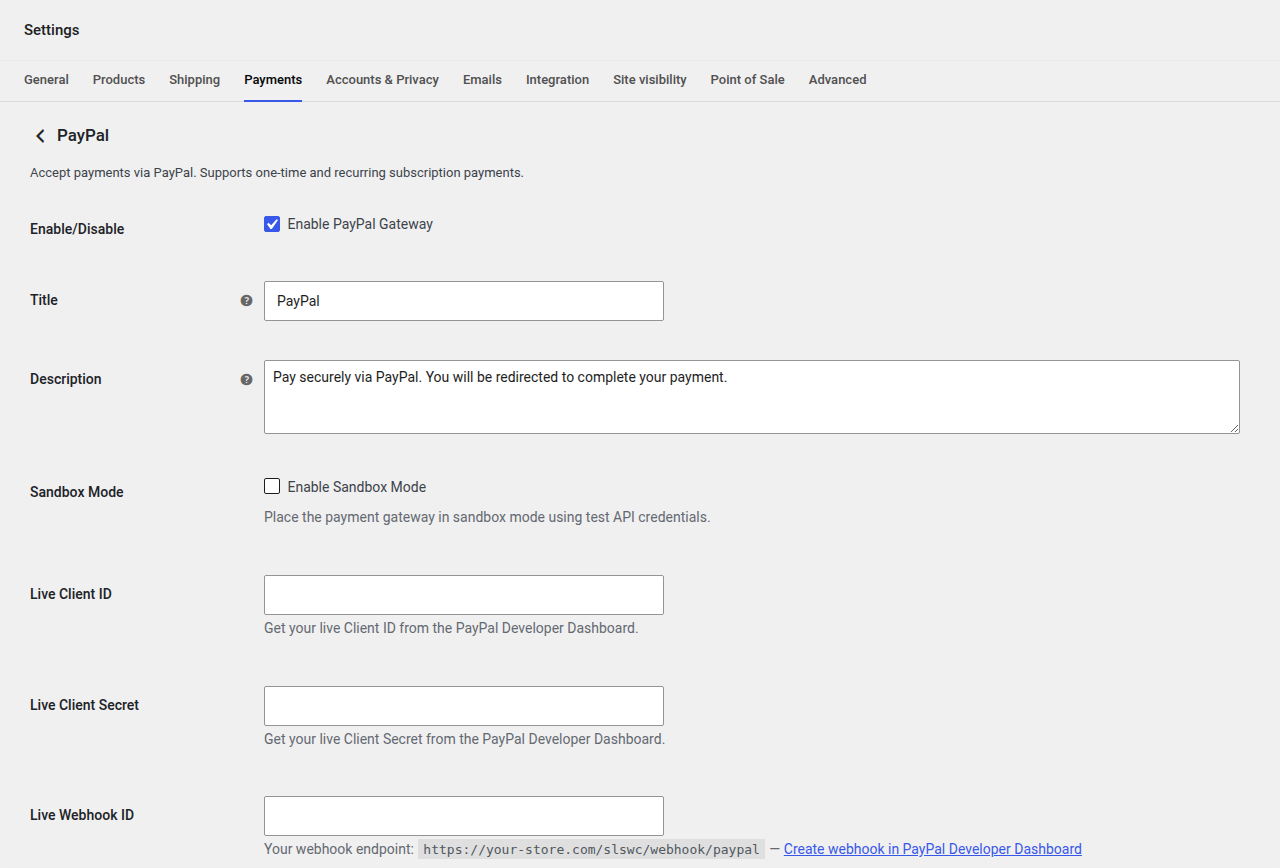
Configuration Fields
| Field | Type | Default | Description |
|---|---|---|---|
| Enable/Disable | Checkbox | no | Enable PayPal Gateway. |
| Title | Text | PayPal | Title displayed to the customer during checkout. |
| Description | Textarea | Pay securely via PayPal. You will be redirected to complete your payment. | Description displayed during checkout. |
| Sandbox Mode | Checkbox | yes | Place the payment gateway in sandbox mode using test API credentials. |
| Sandbox Client ID | Text | (empty) | Get your sandbox Client ID from the PayPal Developer Dashboard. |
| Sandbox Client Secret | Password | (empty) | Get your sandbox Client Secret from the PayPal Developer Dashboard. |
| Sandbox Webhook ID | Text | (empty) | Webhook ID for sandbox mode. |
| Live Client ID | Text | (empty) | Get your live Client ID from the PayPal Developer Dashboard. |
| Live Client Secret | Password | (empty) | Get your live Client Secret from the PayPal Developer Dashboard. |
| Live Webhook ID | Text | (empty) | Webhook ID for live mode. |
| Debug Log | Checkbox | no | Log PayPal events inside wp-content/uploads/wc-logs/. |
Webhook Setup
Configure a webhook in the PayPal Developer Dashboard pointing to:
https://your-store.com/slswc/webhook/paypal/Copy the generated Webhook ID into the corresponding field (sandbox or live).
Getting Your PayPal API Credentials
- Log in to the PayPal Developer Dashboard.
- Navigate to Apps & Credentials.
- Toggle between Sandbox and Live using the switch at the top.
- Click Create App (or select an existing app).
- Enter an app name (e.g., "SLSWC Store") and click Create App.
- On the app detail page, copy the Client ID and Client Secret into the corresponding SLSWC fields.
- For the webhook: scroll down to Webhooks on the app detail page, click Add Webhook, enter your webhook URL (
https://your-store.com/slswc/webhook/paypal/), select all event types, and click Save. - Copy the Webhook ID (shown in the webhooks list) into the Sandbox/Live Webhook ID field.
Tip: Create separate sandbox and live apps for clean separation of test and production credentials.
Troubleshooting
Customer is redirected to PayPal but the payment page shows an error
- Verify your Client ID and Client Secret are correct and match the environment (sandbox credentials for sandbox mode, live credentials for live mode).
- Check that the PayPal app has the correct permissions enabled. The REST API app needs "Accept payments" capability.
- Enable Debug Log and check
wp-content/uploads/wc-logs/for the specific PayPal API error response.
Webhook events are not being received
- Ensure the Webhook ID in SLSWC matches the webhook listed in your PayPal Developer Dashboard.
- Verify the webhook URL is exactly
https://your-store.com/slswc/webhook/paypal/(HTTPS is required, including the trailing slash). - PayPal requires a valid SSL certificate. Self-signed certificates will cause webhook delivery to fail.
- Check the webhook event log in the PayPal Developer Dashboard to see if events are being sent and what response your server returns.
Subscription payments are not being collected
- PayPal subscriptions use the Billing Subscriptions API (v1), which requires the billing agreement to be created correctly during the initial checkout.
- If the initial subscription was created in sandbox mode but you have since switched to live mode, existing sandbox subscriptions cannot be billed in live mode. Customers must re-subscribe.
- Check the subscription status in the PayPal Dashboard. If the subscription shows as "Suspended" or "Cancelled" on PayPal's side, it cannot collect payments regardless of the SLSWC status.
Refunds fail with "Transaction refused"
- PayPal refunds must be issued within 180 days of the original payment.
- Ensure your PayPal account balance is sufficient to cover the refund amount.
- Partial refunds may fail if the original transaction has already been partially refunded up to its limit.