
Navigation: WP Admin > License Server > Settings > Migrations
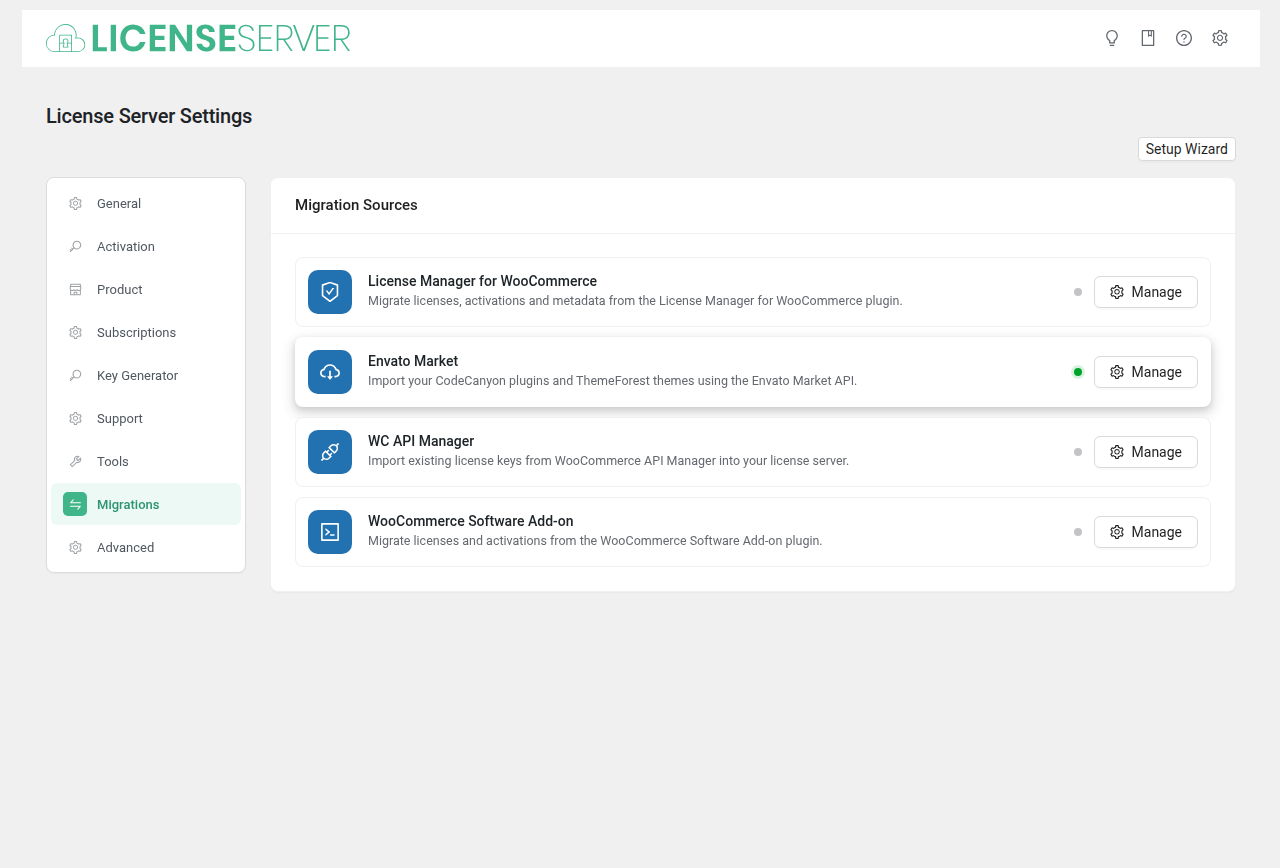
The Migrations tab lets you import products and licenses from external platforms into SLSWC. If you are moving from another license management system or marketplace, migrations help you bring your existing data over without starting from scratch.
Before You Migrate
Complete this pre-migration checklist to avoid data loss or corruption:
- Create a full backup. Back up your WordPress database and files before starting any migration. If something goes wrong, you can restore to the pre-migration state.
- Test in staging first. Run the migration on a staging copy of your site before running it on production. This lets you verify the results without risk.
- Review your existing products. If you already have WooCommerce products with the same names as the ones you are importing, decide whether you want to merge or create duplicates.
- Check your license server activation. Ensure your SLSWC plugin license is active at Settings > Activation — some migration features may require an active license.
- Disable email notifications temporarily. During migration, license creation events may trigger customer emails. Disable outgoing emails at
WP Admin > WooCommerce > Settings > Emailsuntil the migration is complete.
Warning: Migrations create real products and licenses in your store. Always test on staging first.
Import Sources
Envato Market
Import your Envato Market (ThemeForest/CodeCanyon) products into WooCommerce as software products.
| Field | Type | Description |
|---|---|---|
| Personal Token | Password | Create a token at build.envato.com with "List purchases" permission. |
| Username | Text | Your Envato Market seller username. |
Step-by-Step Migration
- Go to build.envato.com and create a new Personal Token.
- Enable the "List purchases" and "View your items" permissions for the token.
- Copy the token and paste it into the Personal Token field on the Migrations tab.
- Enter your Envato seller Username.
- Click Save to store the credentials.
- Click Import Products to launch the migration wizard.
- The wizard displays your Envato products. Select which ones to import.
- Click Start Import to begin. The progress bar shows how many products have been processed.
What Gets Imported
| Envato Data | SLSWC Destination |
|---|---|
| Product name | WooCommerce product title |
| Product description | Product description |
| Product thumbnail | Product featured image |
| Product category | WooCommerce product category |
| Price | Product price |
Tip: After importing, review each product in the WooCommerce product editor. You will need to configure license-specific settings (activation limits, version number, software ZIP file) manually, as Envato does not have equivalents for these fields.
Other Import Sources
The Migrations tab is extensible via filters. Additional importers (LMFWC, WC Software, WC API Manager) can be added by extensions that hook into the slswc_migrations_settings filter.
If you are migrating from one of these systems, check whether an extension is available, or contact support for guidance.
Progress Tracking
During a migration, the UI displays:
- A progress bar showing the percentage of items processed.
- A log area listing each item as it is imported, with success or error status.
- A summary at the end showing how many items were imported, skipped, or failed.
If the migration is interrupted (browser closed, server timeout), you can safely re-run it. The importer skips items that have already been imported.
Troubleshooting Migration Issues
"Invalid token" error
- Verify your Personal Token at build.envato.com. Tokens can expire or be revoked.
- Ensure the token has the correct permissions ("List purchases" for buyer data, "View your items" for seller products).
Products imported without images
- Envato may rate-limit image downloads. Wait a few minutes and re-run the import — already-imported products are skipped, but missing images may be retried.
- Check your server's
upload_max_filesizePHP setting if images are large.
Migration stalls or times out
- Large catalogs may exceed PHP's
max_execution_time. Increase this value in yourphp.inior.htaccessfor the duration of the migration. - Try importing in smaller batches by selecting fewer products per run.
Duplicate products created
- If you run the import multiple times, the importer should detect existing products and skip them. If duplicates appear, check that the product matching logic is using the correct identifier (Envato item ID stored in product meta).
Related Pages
- Getting Started — Initial setup after migration
- Settings > Activation — Ensure your plugin license is active