
Navigation: WP Admin > License Server > Settings > Activation
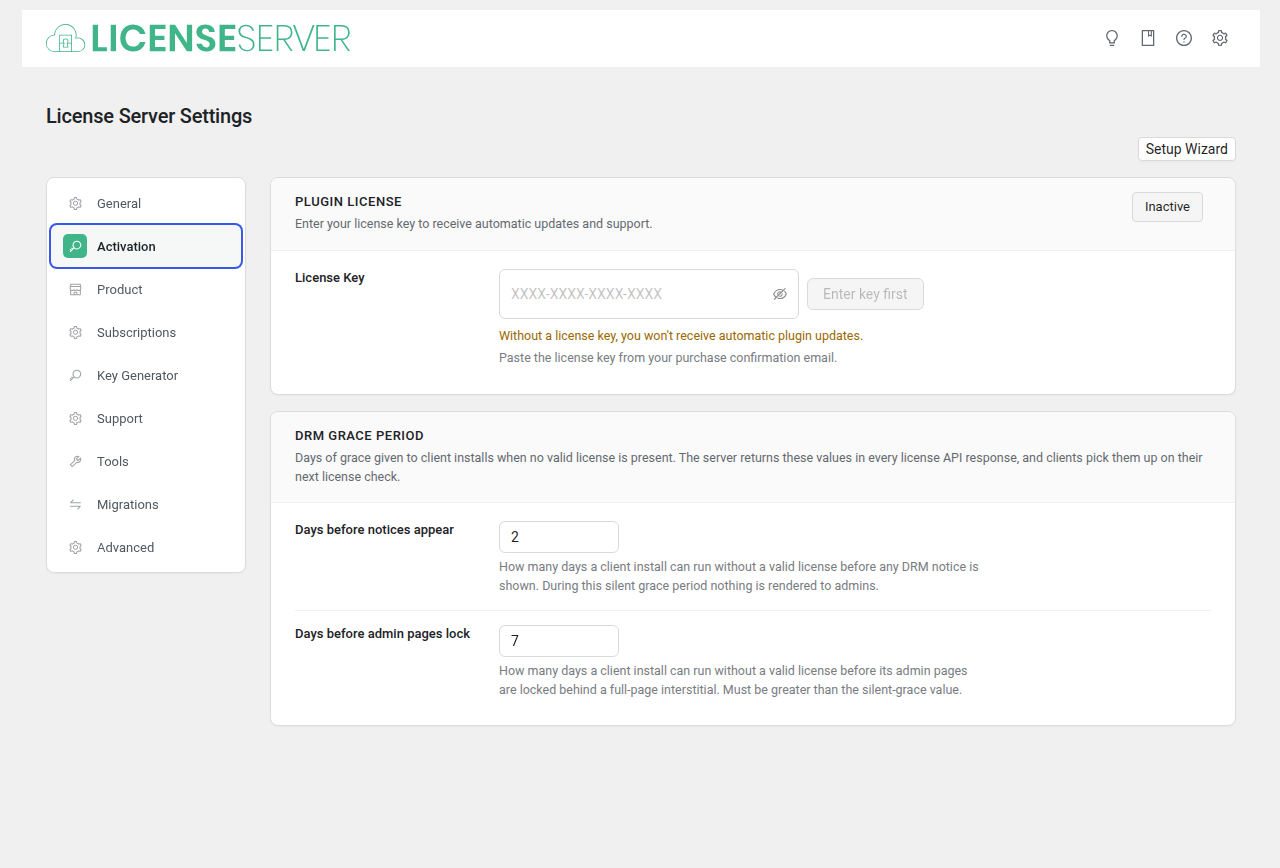
The Activation tab manages the license key for the SLSWC plugin itself. This is not about your customers' licenses — it is about your own license to use the SLSWC plugin on your site. An active license enables automatic updates, support access, and premium features.
What Your Plugin License Provides
| Benefit | Description |
|---|---|
| Automatic updates | Receive new versions of SLSWC directly in your WordPress dashboard, just like any other plugin update. Without an active license, you must download and install updates manually. |
| Support access | Submit support tickets for technical assistance with the plugin. |
| Full admin access | Without an active license, the Subscriptions and Support admin pages are locked after a grace period, and most Settings tabs are disabled. See Without an Active License. |
| Security patches | Critical security fixes are delivered through automatic updates. Keeping your license active ensures you receive them promptly. |
Warning: Running SLSWC without an active license means you will not receive automatic security patches. This could leave your license server vulnerable to known issues.
Plugin License
Enter your license key to receive automatic updates and support.
| Field | Type | Default | Description |
|---|---|---|---|
| License Key | Activate License | (empty) | Paste the license key from your purchase confirmation email. |
After entering the key, click Activate License. The plugin contacts the licensing server to validate the key and register your domain.
DRM Grace Period
These two values are sent to the plugins and themes you sell, in every license API response. Your customers' installs pick them up on their next license check and use them when they run without a valid license.
| Field | Type | Default | Description |
|---|---|---|---|
| Days before notices appear | Number | 2 | How many days a customer's install can run without a valid license before any license notice is shown. Nothing is shown during this silent period. |
| Days before admin pages lock | Number | 7 | How many days a customer's install can run without a valid license before its admin pages are locked behind a full-page notice. Must be greater than Days before notices appear. |
See DRM for how the client library applies these values.
License Status
The section header displays a status chip showing your current license state:
| Status | Color | Meaning |
|---|---|---|
| Active / Valid | Green | Your license is active and receiving updates. Everything is working correctly. |
| Expired | Red | Your license has expired. Renew to restore automatic updates and support access. You will not receive new versions, and after the grace period some admin pages are locked (see below). |
| Inactive | Grey | No license key has been entered or the key has not been activated. Enter your key and click Activate. |
Click the status chip to view license details including the registered domain, installed version, and expiry date.
Without an Active License
If the plugin's own license is missing, expired, or not activated, SLSWC gives you a grace period before restricting the admin. The grace period is counted from the last successful license check:
| Days without a successful check | What happens |
|---|---|
| 0 — 1 | Nothing visible. The grace period runs silently. |
| 2 — 6 | An admin notice warns that a license is required and counts down the days remaining. |
| 7 and beyond | The Subscriptions and Support admin pages show a lock screen instead of their content. |
When the lock is active:
- Dashboard, Licenses, Reports, and Settings keep working, with an admin notice asking you to activate your license.
- Settings opens on the Activation tab with a "License required." banner. The other Settings tabs are disabled until a license key is activated.
- Your customers are not affected. License activations, update checks, and the store front end keep working.
Activating a valid license key on this tab removes the lock immediately.
Note: Expired and expiring license notices can appear at any time, independent of the grace period.
Troubleshooting Activation Failures
"License key is invalid"
- Double-check the key for typos. Copy and paste it directly from your purchase confirmation email.
- Ensure you are using the correct key for this product (SLSWC, not a key for a different product).
- If you purchased through a reseller, verify the key has not already been used on another domain.
"License has reached maximum activations"
- Your license key may have a domain activation limit. If you have moved your site to a new domain, deactivate the old domain first from your account page on the SLSWC vendor site.
- If you are running both a staging and production site, check whether both count toward your activation limit.
"Could not connect to license server"
- Verify your server can make outbound HTTPS requests. Some hosting providers block outgoing connections.
- Check if a firewall or security plugin is blocking requests to the SLSWC licensing server.
- Try again in a few minutes — the licensing server may be temporarily unavailable.
License shows "Inactive" after entering a valid key
- Click the Activate License button after pasting the key. Simply entering the key does not activate it.
- Clear your site's object cache and transients, then try again.
Related Pages
- Getting Started — Activation is step 1 of the setup checklist