Navigation: WP Admin > License Server > Settings > Product
The Product tab controls which software-specific tabs appear on the single product page in your store's frontend. These tabs provide customers with important information about your software — how to install it, what has changed in recent versions, and a detailed description beyond the standard WooCommerce product description.
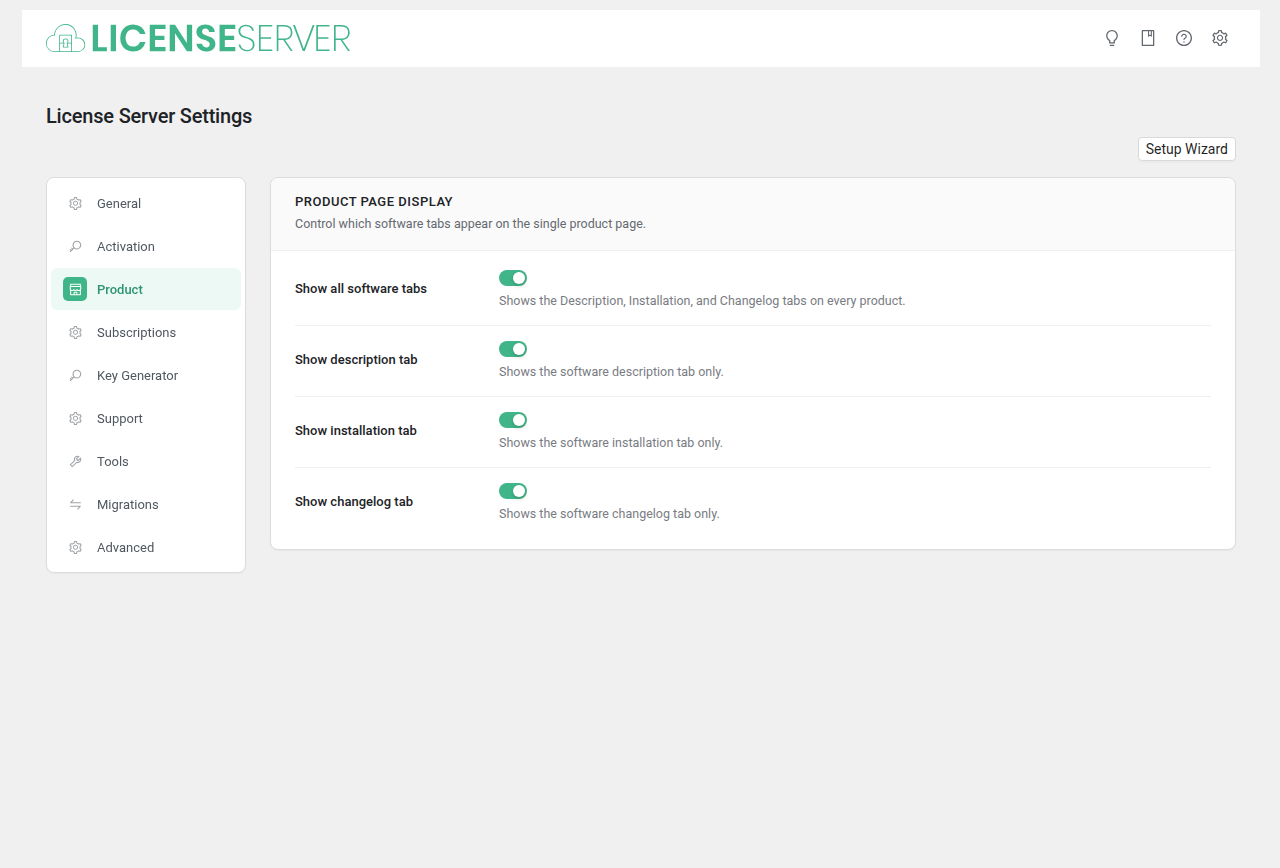
Product Page Display
Control which software tabs appear on the single product page.
| Field | Type | Default | Description |
|---|---|---|---|
| Show all software tabs | Checkbox | yes | Shows the Description, Installation, and Changelog tabs on every product. When enabled, the individual tab toggles below are ignored. |
| Show description tab | Checkbox | yes | Shows the software description tab only. Only takes effect when "Show all software tabs" is disabled. |
| Show installation tab | Checkbox | yes | Shows the software installation tab only. Only takes effect when "Show all software tabs" is disabled. |
| Show changelog tab | Checkbox | yes | Shows the software changelog tab only. Only takes effect when "Show all software tabs" is disabled. |
When to Show or Hide Tabs
Each tab serves a specific purpose. Here is guidance on when you might want to hide one:
- Description tab: This displays the software-specific description (separate from the main WooCommerce product description). Hide it if you prefer to put all product information in the main description field, or if your product descriptions are brief enough that a separate tab adds unnecessary complexity.
- Installation tab: Shows installation instructions for the product. Hide it if you maintain installation documentation elsewhere (e.g., on a separate docs site) and want to avoid duplication. You could link to your external docs from the product description instead.
- Changelog tab: Displays the version history for the product. Hide it if you maintain a separate changelog page, a GitHub releases page, or use a third-party changelog tool. Keeping changelogs in two places leads to them falling out of sync.
Tip: If you are just getting started, leave all tabs enabled. They provide a professional, complete product page out of the box. You can always disable individual tabs later as your documentation strategy evolves.
How These Settings Affect Your Store
These settings apply globally to all software product pages. When a tab is hidden:
- The tab and its content are removed from the product page for all visitors.
- The content is still stored in the product data — hiding the tab does not delete the content. You can re-enable the tab at any time.
- The tab content entered in the product editor (under the License/Software data tabs) is unaffected.
Related Pages
- Getting Started — Initial setup including creating your first product
- Product Types — Understanding Software and Variable Software product types