
Navigation: WP Admin > WooCommerce > Settings > Payments > Stripe Payment Gateway
Accept payments via Stripe, including credit/debit cards, Apple Pay, Google Pay, and Link. Supports one-time payments, refunds, and recurring subscriptions.
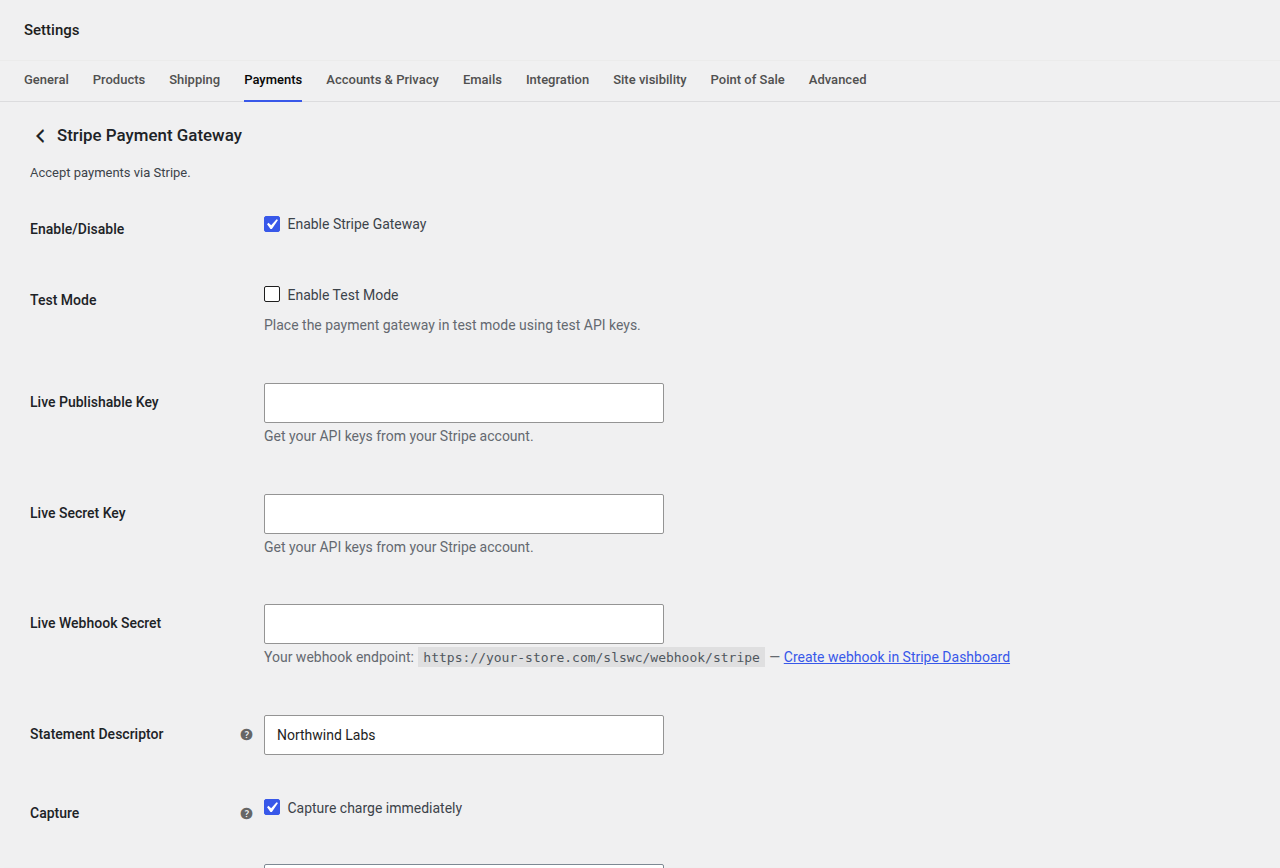
Features
- One-time and recurring payments
- Refunds via WooCommerce order screen
- Stripe Checkout hosted payment page
- Block checkout support
- Subscription payment retries
Configuration Fields
| Field | Type | Default | Description |
|---|---|---|---|
| Enable/Disable | Checkbox | no | Enable Stripe Gateway. |
| Integration Type | Select | connect | Choose how to integrate with Stripe: Manual API Keys or Stripe Connect. Only visible if SLSWC_STRIPE_CLIENT_ID is defined. |
| Stripe Connect | Button | — | Connect with Stripe to automatically configure your integration. |
| Test Mode | Checkbox | yes | Place the payment gateway in test mode using test API keys. |
| Test Publishable Key | Text | (empty) | Your Stripe test publishable key. Visible in manual mode. |
| Test Secret Key | Password | (empty) | Your Stripe test secret key. Visible in manual mode. |
| Test Webhook Secret | Password | (empty) | Webhook signing secret for test mode. |
| Live Publishable Key | Text | (empty) | Your Stripe live publishable key. Visible in manual mode. |
| Live Secret Key | Password | (empty) | Your Stripe live secret key. Visible in manual mode. |
| Live Webhook Secret | Password | (empty) | Webhook signing secret for live mode. |
| Statement Descriptor | Text | (site name) | Text customers see on their credit card statements (max 22 characters). |
| Capture | Checkbox | yes | Capture charge immediately. When unchecked, the charge issues an authorization and will need to be captured later. |
| Payment Methods | Multiselect | card | Select which payment methods to enable: Credit/Debit Card, Apple Pay, Google Pay, Link by Stripe. |
| Debug Log | Checkbox | no | Log Stripe events inside wp-content/uploads/wc-logs/. |
Webhook Setup
Configure a webhook in your Stripe Dashboard pointing to:
https://your-store.com/slswc/webhook/stripe/Copy the signing secret into the Test Webhook Secret or Live Webhook Secret field.
Stripe Connect
If SLSWC_STRIPE_CLIENT_ID is defined in your configuration, you can use Stripe Connect for a simplified setup. Click the Connect with Stripe button to authorize the connection. Once connected, API keys are managed automatically.
Getting Your Stripe API Credentials
If you are using manual API keys (not Stripe Connect), follow these steps:
- Log in to the Stripe Dashboard.
- Click Developers in the left sidebar, then click API keys.
- You will see your Publishable key (starts with
pk_test_orpk_live_) and Secret key (starts withsk_test_orsk_live_). - Copy the publishable key into the Test/Live Publishable Key field in SLSWC.
- Click Reveal test/live key to view the secret key, then copy it into the Test/Live Secret Key field.
- For the webhook secret: go to Developers > Webhooks, click Add endpoint, enter your webhook URL (
https://your-store.com/slswc/webhook/stripe/), select the events to listen for, and click Add endpoint. Copy the Signing secret (starts withwhsec_) into the Webhook Secret field.
Tip: Always start with test mode enabled and test API keys. Only switch to live keys after you have confirmed the integration works correctly with test transactions.
Customising Card Field Styles (Developers)
The data passed to the Stripe checkout script can be changed with the slswc_stripe_elements_options filter. Add an elements_styling key (Stripe Elements style object) and/or an elements_classes key (Stripe Elements classes object) to restyle the card fields:
add_filter( 'slswc_stripe_elements_options', function ( $options ) {
    $options['elements_styling'] = array(
        'base' => array(
            'color'    => '#1d2327',
            'fontSize' => '16px',
        ),
    );
    return $options;
} );
These keys only apply to the separate card number, expiry and CVC fields, which are used when there is no PaymentIntent (for example on the pay-for-order and add-payment-method pages). The main checkout uses the Stripe Payment Element, which has a fixed appearance that these keys don't change. See the Hooks Reference.
Troubleshooting
Payments fail with "No such customer" or "No such payment method"
This usually happens when you switch between test and live mode without updating your API keys. Test-mode customers and payment methods do not exist in live mode, and vice versa. Ensure your API keys match the mode you are operating in.
Webhook events are not being received
- Verify the webhook URL in your Stripe Dashboard matches exactly:
https://your-store.com/slswc/webhook/stripe/(including the trailing slash). - Check that the Webhook Secret field matches the signing secret shown in the Stripe Dashboard for this endpoint.
- Ensure your server is not blocking incoming POST requests from Stripe's IP ranges.
- Enable Debug Log and check
wp-content/uploads/wc-logs/for webhook signature verification errors.
Subscription renewals fail with "Invoice payment failed"
- The customer's payment method may have expired or been declined. Stripe sends a
invoice.payment_failedevent when this happens. - Check the subscription in the Stripe Dashboard to see the specific decline reason (insufficient funds, card expired, etc.).
- SLSWC will automatically retry the payment based on your retry settings. You can also retry manually from the Stripe Dashboard.
"Statement descriptor is invalid" error
The statement descriptor must be 22 characters or fewer and can only contain letters, numbers, and certain special characters. Remove any unsupported characters from the Statement Descriptor field.