
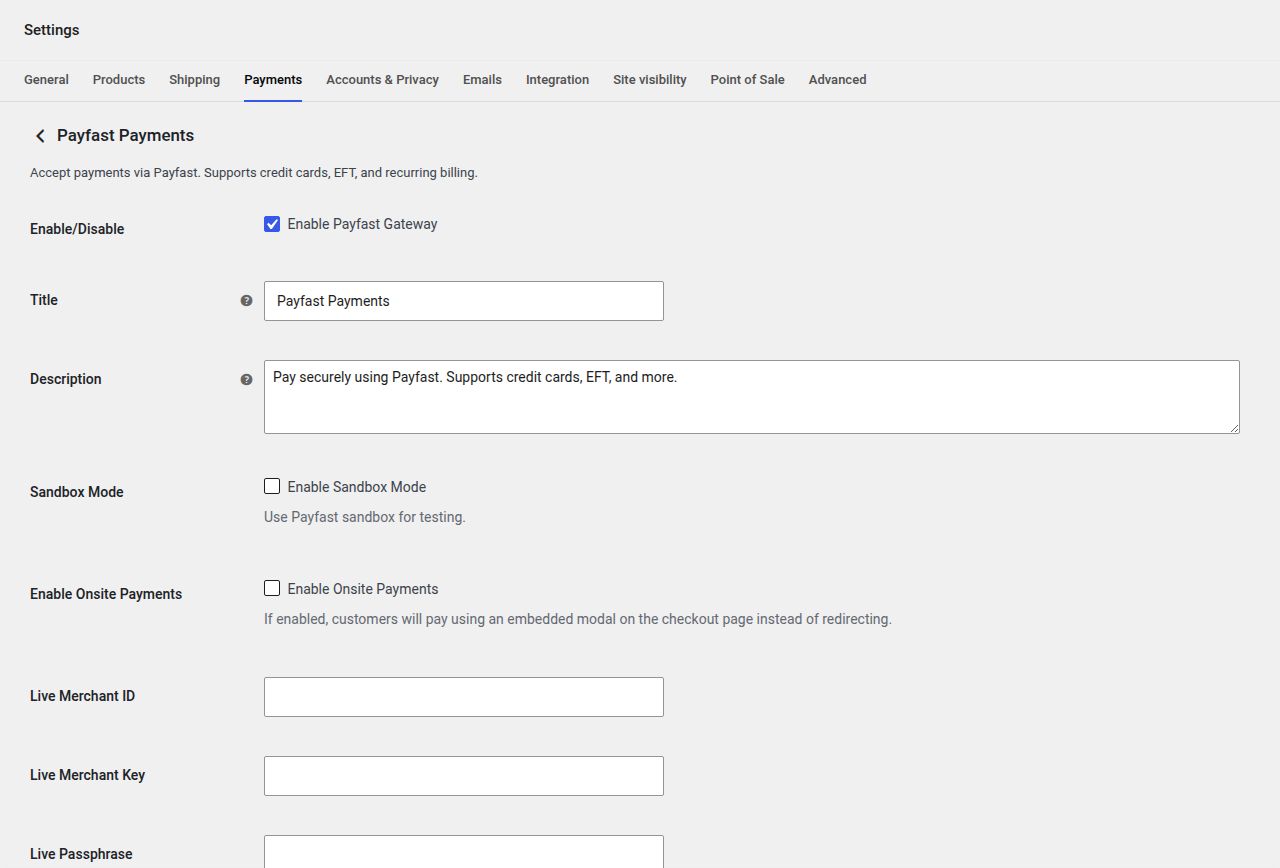
Navigation: WP Admin > WooCommerce > Settings > Payments > Payfast Payments
Accept payments via Payfast, supporting credit cards, EFT, and recurring billing. Uses Onsite Payments (live) with Custom Integration fallback (sandbox). Payfast processes payments in South African Rand (ZAR), with optional currency conversion for non-ZAR stores.
Features
- Credit card and EFT payments
- Onsite Payments (embedded modal) for live mode
- Recurring subscription billing
- Automatic currency conversion to ZAR
- Block checkout support
Configuration Fields
| Field | Type | Default | Description |
|---|---|---|---|
| Enable/Disable | Checkbox | no | Enable Payfast Gateway. |
| Title | Text | Payfast Payments | Payment method title displayed at checkout. |
| Description | Textarea | Pay securely using Payfast. Supports credit cards, EFT, and more. | Payment method description displayed at checkout. |
| Sandbox Mode | Checkbox | yes | Use Payfast sandbox for testing. |
| Enable Onsite Payments | Checkbox | no | If enabled, customers will pay using an embedded modal on the checkout page instead of redirecting. |
| Sandbox Merchant ID | Text | 10000100 | Payfast sandbox merchant ID. |
| Sandbox Merchant Key | Text | 46f0cd694581a | Payfast sandbox merchant key. |
| Sandbox Passphrase | Password | jt7NOE43FZPn | Payfast sandbox passphrase. |
| Live Merchant ID | Text | (empty) | Your Payfast live merchant ID. |
| Live Merchant Key | Text | (empty) | Your Payfast live merchant key. |
| Live Passphrase | Password | (empty) | Your Payfast live passphrase. |
| Debug Log | Checkbox | no | Log Payfast events inside wp-content/uploads/wc-logs/. |
Currency Conversion (non-ZAR stores only)
These fields appear only when your WooCommerce store currency is not ZAR:
| Field | Type | Default | Description |
|---|---|---|---|
| Enable Currency Conversion | Checkbox | yes | Convert non-ZAR currencies to ZAR for Payfast. |
| Exchange Rate Source | Select | manual | Source for exchange rates: Manual Rate or European Central Bank (Free). |
| {Currency} to ZAR Rate | Number | (empty) | Manual exchange rate (e.g., 1 USD = X ZAR). Step: 0.0001. |
| Conversion Notice | Textarea | Payment will be processed in South African Rand (ZAR). Your card issuer may apply a different exchange rate. | Notice displayed at checkout when currency conversion applies. |
Webhook Setup (ITN)
Configure your Payfast ITN (Instant Transaction Notification) URL to:
https://your-store.com/slswc/webhook/payfast/This is configured in your Payfast merchant dashboard.
Getting Your Payfast Credentials
- Log in to your Payfast Dashboard.
- Navigate to Settings > Integration.
- Your Merchant ID and Merchant Key are displayed on this page. Copy them into the corresponding SLSWC fields.
- Set a Passphrase on the same page (under "Security" or "Passphrase" section). This passphrase is used to sign payment requests and verify ITN notifications. Copy it into the Passphrase field in SLSWC.
- For the ITN URL: on the same Integration page, enter your webhook URL (
https://your-store.com/slswc/webhook/payfast/) in the Notify URL field, or configure it per-transaction (SLSWC sends it with each payment request).
For sandbox testing:
- Register a sandbox account at sandbox.payfast.co.za.
- The default sandbox credentials are pre-filled in SLSWC (Merchant ID:
10000100, Merchant Key:46f0cd694581a, Passphrase:jt7NOE43FZPn). You can use these for testing without creating your own sandbox account.
Tip: Payfast sandbox and live environments are completely separate systems. Sandbox transactions never appear in your live dashboard and vice versa.
Troubleshooting
Payments fail with a signature mismatch error
- The most common cause is an incorrect Passphrase. Ensure the passphrase in SLSWC exactly matches the one set in your Payfast Dashboard (including case and whitespace).
- If you recently changed your passphrase in the Payfast Dashboard, update it in SLSWC as well.
- Enable Debug Log to see the exact signature strings being compared.
Onsite Payments modal does not appear
- Onsite Payments (the embedded payment modal) only works in live mode. In sandbox mode, customers are redirected to the Payfast sandbox payment page instead.
- Ensure Enable Onsite Payments is checked in the gateway settings.
- Check your browser console for JavaScript errors that may prevent the modal from loading.
Currency conversion shows incorrect amounts
- If your store currency is not ZAR, verify your exchange rate is current. Manual rates can become stale quickly.
- Consider switching to the European Central Bank exchange rate source for automatic rates, though note that these are updated once daily and may not reflect real-time rates.
- The conversion notice at checkout is customizable — update it to set the right expectations with customers about potential exchange rate differences from their card issuer.
ITN (webhook) notifications are not being received
- Payfast requires your server to respond with an HTTP 200 status code. If your server returns an error or redirect, Payfast will stop sending notifications.
- Ensure your server is accessible from Payfast's IP ranges. Some hosting providers or firewalls may block incoming requests from South African IP addresses.
- Check the Payfast Dashboard for ITN delivery logs to see if notifications are being sent and what response your server returns.