
Navigate to My Account > License Keys to view and manage all your license keys.
Endpoint: /my-account/license-keys/
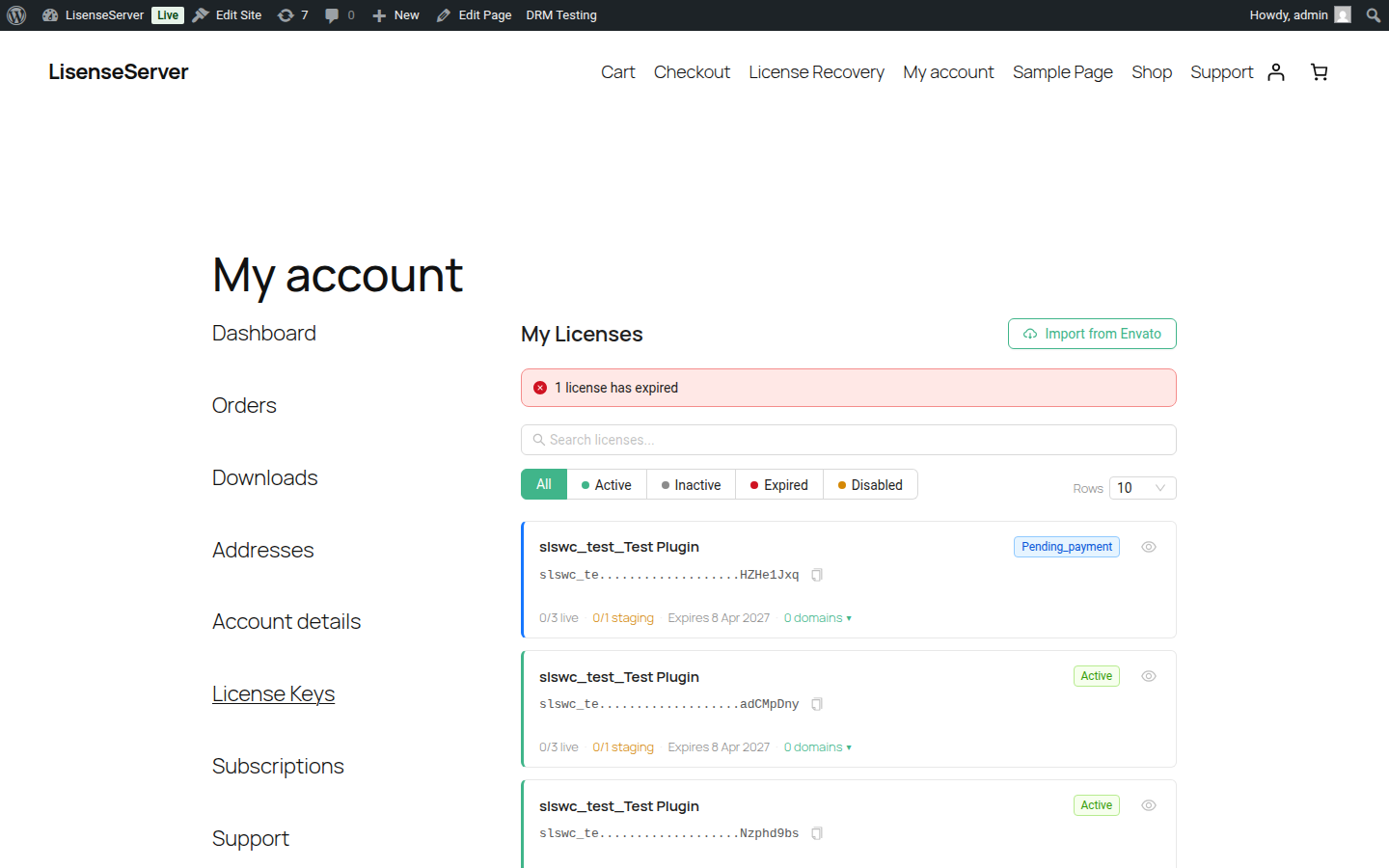
Viewing Your Licenses
The license keys page shows all licenses associated with your account. Each license card displays:
- Product name and current status
- License key (truncated for security; first 8 and last 8 characters shown)
- Activation count — how many live and staging activations are in use out of your maximum
- Expiration date
- Active domains — click the domain count to expand and see which domains are activated
Searching and Filtering
- Search — Type in the search bar to filter licenses by product name or key. Search is debounced so results appear after you stop typing.
- Status filter — Use the status buttons to show only licenses with a specific status: All, Active, Inactive, Expired, or Disabled.
- Rows per page — Choose how many licenses to display per page (5, 10, 20, or 50).
License Statuses
| Status | Meaning |
|---|---|
| Active | License is valid and can receive updates and support |
| Inactive | License exists but has not been activated on any domain |
| Expired | License validity period has ended; renew to restore access |
| Disabled | License has been manually disabled by the store owner |
Copying Your License Key
Click the copy button next to any license key to copy the full key to your clipboard. A confirmation message appears when the copy succeeds.
Viewing License Details
Click the eye icon on any license card to open the details drawer. The drawer shows:
- Full license key with a copy button
- Purchase date, expiration date, and renewal period
- Live activation count (e.g., 2 / 5)
- Staging activation count (if staging is enabled for your license)
- A table of all activated domains with their environment type (Production or Staging)
- A link to view your order and downloads
Renewing a License
When a license is expiring soon (within 30 days) or has already expired, a Renew button appears directly on the license card and in the details drawer.
- Expiring soon — The button shows how many days remain, e.g., "Expires in 12d — Renew"
- Expired — A red "Renew Now" button appears
The page also shows urgency banners at the top when licenses need attention:
- A warning banner for licenses expiring soon
- An error banner for already-expired licenses
Removing a Domain
To deactivate a license from a specific domain:
- Expand the domains list by clicking the domain count on the license card, or open the details drawer.
- Click the delete button next to the domain you want to remove.
- Confirm the removal when prompted.
The activation count updates automatically after a domain is removed.
Importing from Envato
If you purchased a product on CodeCanyon or ThemeForest, you can import that purchase into your license account.
- Click the Import from Envato button at the top of the page.
- Enter your Envato item purchase code in the modal that appears.
- Click Import License.
If the purchase code is valid, a license is created and added to your account. You can find your Envato purchase code on the CodeCanyon downloads page.
Deep Linking
License detail links (e.g., from email notifications) use the format #license-123. When you open such a link, the details drawer opens automatically for that license.